📡 Traceroute
← Handbook home · 🇩🇪 Deutsche Version
- Start traceroute – directly from the node context menu (node list, map, message list)
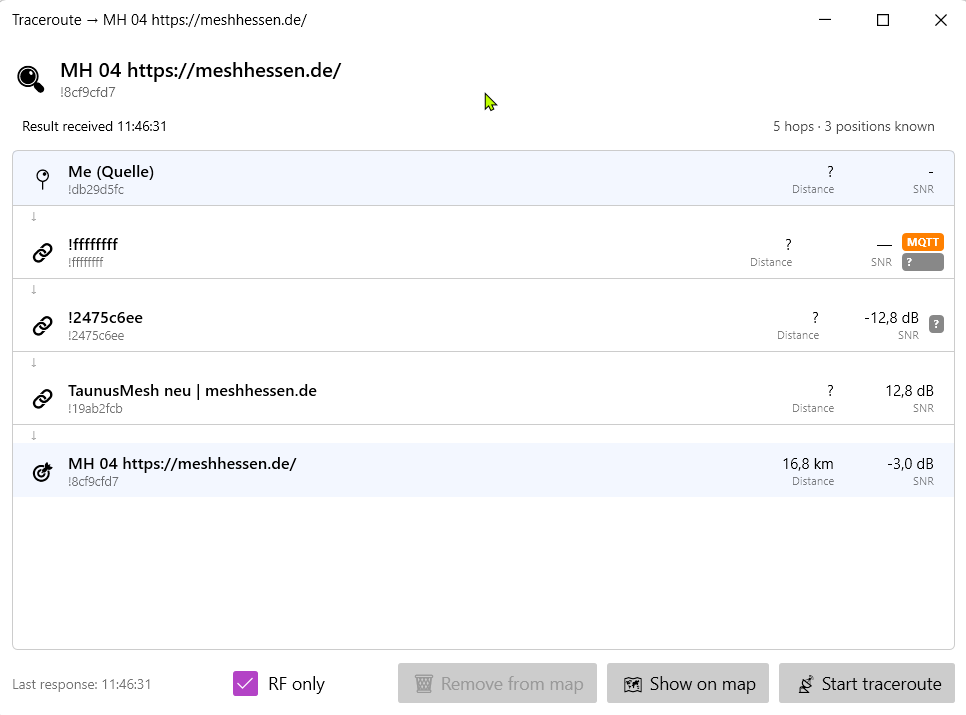
- "RF only" mode – sends the request with the OK-to-MQTT bit cleared (pre-encrypted packet): MQTT gateways won't uplink it, the route runs over RF exclusively. Note: the reply may still come back via MQTT — that's up to the target node.
- Honest MQTT badges: hops only get the MQTT badge when no radio measurement exists for that segment; the header badge "via MQTT" only means "the reply arrived via MQTT"
- Dedicated window per target node with:
- Hop table: node name, distance, SNR (in dB), MQTT indicator
- Live status (waiting / received)
- ⛰ Elevation profile per hop – right-click a hop row to see the segment's terrain profile (SRTM, line of sight, Fresnel zone)
- Map plotting – solid line where positions are known, dashed where missing; direction arrows; MQTT bridges as lightning zigzag; click a segment → SNR popup
- Multiple traceroutes at once on the map – each gets a unique color
- Save & Load – traceroutes are automatically saved to
traceroutes/as JSON; compare routes over time, load multiple files, load historical traceroutes from the database - Time range filter – filter traceroutes by period (3d / 7d / 14d / 30d / 90d / All)
- Deduplication – show only the latest traceroute per node pair (optional)
- Map legend – shows all active traces with color and individual ✕ remove button
Screenshots
Traceroute window with hop table, "RF only" checkbox and honest MQTT badges (only the bridged segment carries the badge):
Traceroute path on the map: