📊 Telemetry & Radio Analysis
← Handbook home · 🇩🇪 Deutsche Version
Telemetry database & dashboard
- Persistent telemetry database – received packet and device data is stored locally in a SQLite database
- Telemetry Dashboard – freely configurable widget dashboard with named dashboards (📊 button in the toolbar):
- 14 widget types: line, area, bar, scatter, gauge, stat value, heatmap, histogram, candlestick, state timeline, ranking, multi-stat, mesh health, clock
- Multi-node support, all metrics: SNR, RSSI, battery, voltage, channel/TX utilization, temperature, humidity, pressure, packets/h, noise floor, RX/TX stats
- Drag-and-drop arrangement, freely resizable, editable, duplicatable, auto-refresh
- Zoom/pan in charts (survives auto-refresh), day/night shading, threshold lines with Windows toast alerts on crossings
- Export: CSV (incl. a German-Excel flavour), widget as PNG, copy image, share whole dashboards as JSON (export/import)
- Fullscreen mode (F11) for wall monitors; window placement and last active dashboard are remembered
- Automatic telemetry polling (📥): up to 4 nodes are actively polled for LocalStats/environment/device data (mesh-friendly: LocalStats at most 1×/h, others every 30 min max); counter deltas yield packets/h rates
- Persisted in
dashboards.json, theme-adaptive incl. live Windows theme switching; independent window for a second monitor
📊 Telemetry dashboard – freely configurable widgets with threshold alerts, auto-refresh and fullscreen:
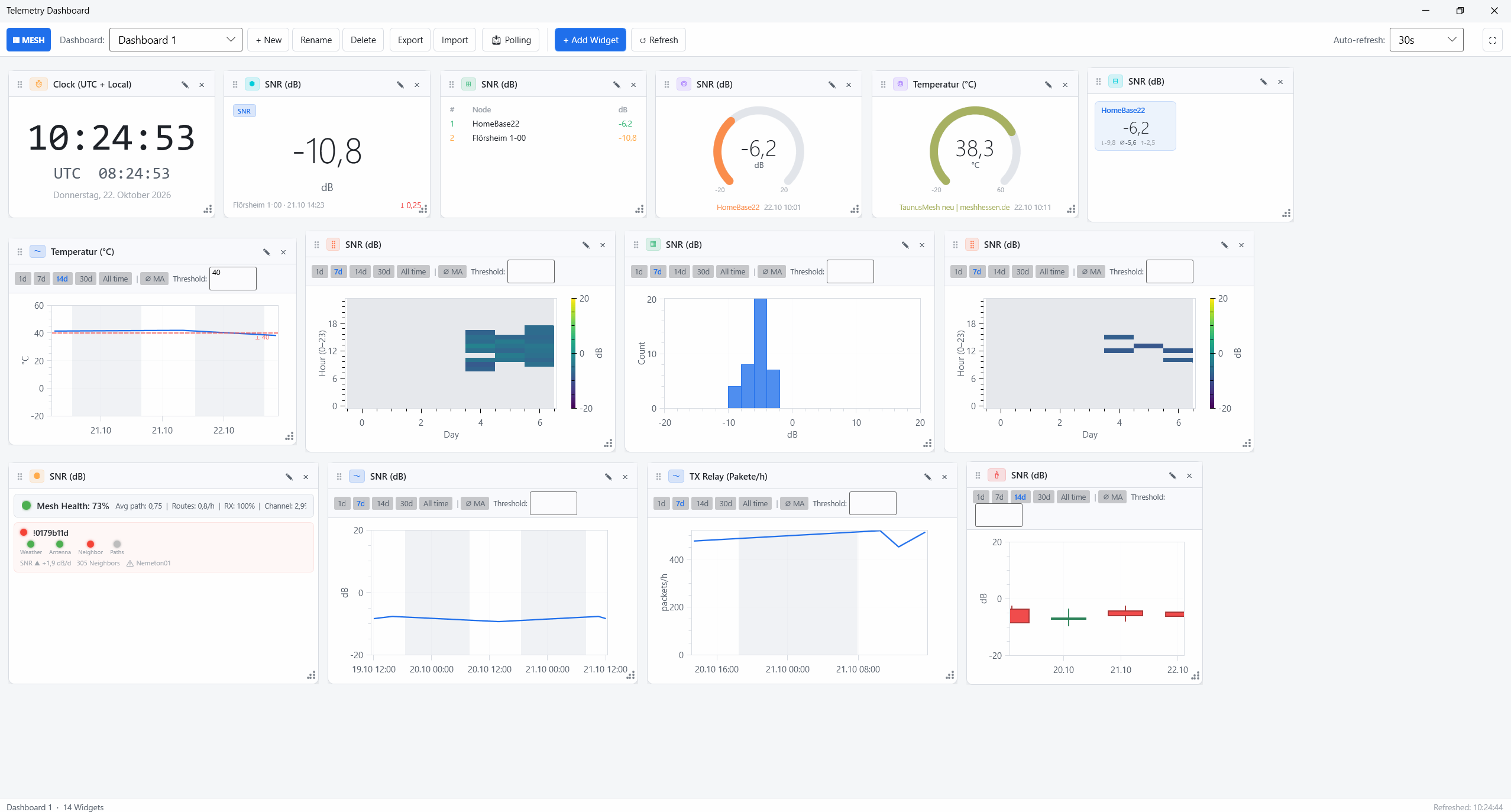
How-to: create a dashboard, set an alert, read the values
Goal: a dashboard that watches your solar router's battery and warns you before it runs dry overnight.
- Open: 📊 button in the main window toolbar → on first open the window is empty; "+ New" creates your first dashboard (suggested name "Dashboard 1" — call it e.g. "Solar monitoring")
- Add a widget: "+ Add Widget" → pick a type (for battery: time series/line), tick the node(s), metric battery (%), range 7 days (the default) → save. On the finished card you can switch via the 1d/7d/14d/30d buttons, reorder via the ⠿ grip and resize via the grip in the lower right
- Set the alert: enter your limit into the widget's Threshold field (e.g.
30). The threshold line appears in the chart; when the value crosses it on a refresh you get a Windows toast (transition only — no constant nagging) - Keep it fresh: auto-refresh top right (e.g. 30 s); if the node rarely sends on its own, add it to the polling plan via the 📥 Polling button (max. 4 nodes, mesh-friendly)
- Success check & alert test: the widget shows a curve with day/night shading; the last refresh time is shown at the bottom. Test the alert in two steps: first set the threshold on the same side as the current value (e.g. well below the battery level) and wait for one refresh — this first check silently records the baseline. Then move the threshold past the current value and press "↺ Refresh" (or wait for the auto-refresh): now the toast fires
- Reading the values: if the battery drops more than ~15–20 % overnight, see the chapter Understanding the values (night drop, voltage); SNR/RSSI interpretation lives there and in the glossary
Typical pitfalls:
- Widget stays empty → no data for this node/metric in the telemetry database yet (the node doesn't send that metric → enable polling or right-click "Request information")
- No toast despite threshold → checks only happen on a refresh (auto-refresh, "↺" or saving in the editor), never while typing — and the very first check after opening silently records the baseline; only the next transition is reported. Also check: are Windows notifications allowed for apps?
- Zoom keeps resetting → zoom/pan survives auto-refresh; the manual "Refresh" button deliberately resets the view
Node statistics & real RF neighbors
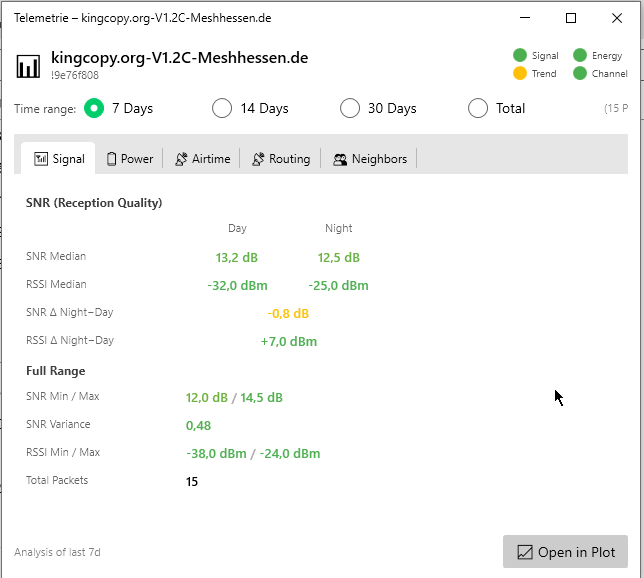
- Node statistics window – detailed analysis per node:
- Day/night breakdown of reception quality
- Time-series graphs for SNR, RSSI, packet rate and device data (battery, voltage)
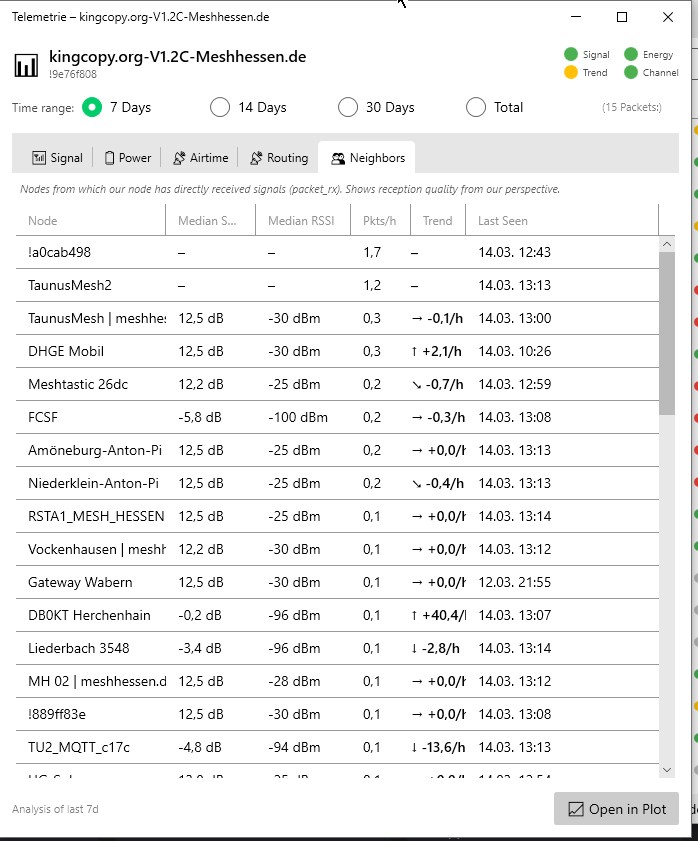
- Real RF neighbors – proven by direct reception, traceroute hop pairs and NeighborInfo packets, with SNR in both directions (fills over time; classic "heard" list as automatic fallback until then)
- LocalStats (newer firmware): noise floor, RX bad/duplicates, TX relay and more (routing tab)
- "Net:" LED strip in the main window — the state of the whole visible mesh at a glance:
- Weather/ST – "signal weather": short-term SNR/RSSI trend of all nodes (last 6 h)
- LT-SNR – antenna health: long-term SNR trend of all nodes (last 7 days)
- Nbrs – neighbor quality: average link quality to neighbor nodes
- Path – route stability: frequency of route changes in the mesh
- Mesh Health – overall score 0–100 % from path costs, route changes, reception rate and channel utilization
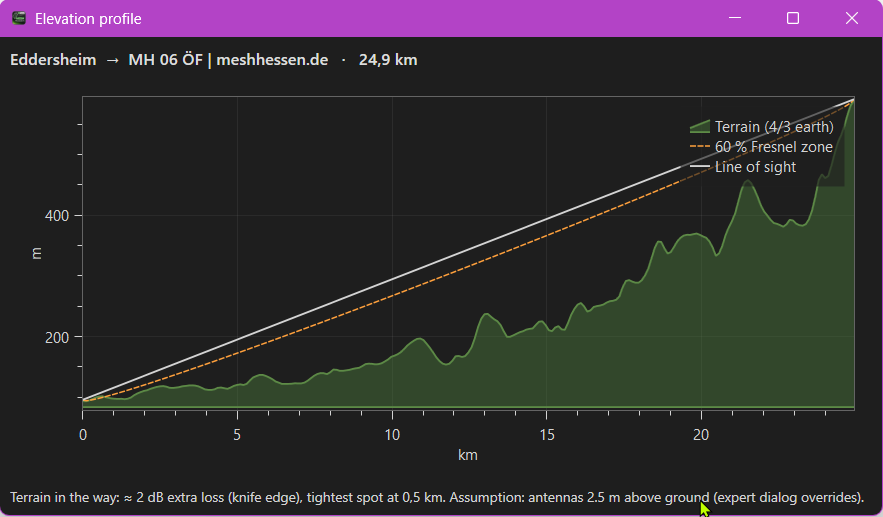
⛰ Elevation profile per radio link
Real RF neighbors with SNR in both directions — a right-click on a neighbor (or a traceroute hop) opens the link's elevation profile:
The elevation profile then shows the SRTM terrain profile of the radio link with line of sight and 60 % Fresnel zone (4/3 earth, 868 MHz), including a verdict whether the path is clear or terrain is in the way:
More screenshots
Telemetry LED indicators in the main window:
Telemetry time-series graph (SNR, RSSI, battery):
Node telemetry statistics window:
Node telemetry overview (signal):
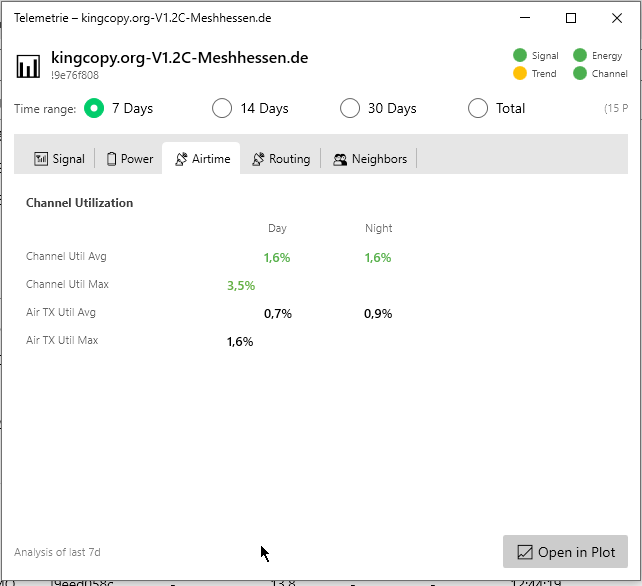
Airtime analysis per node (TX/RX airtime, channel utilization):
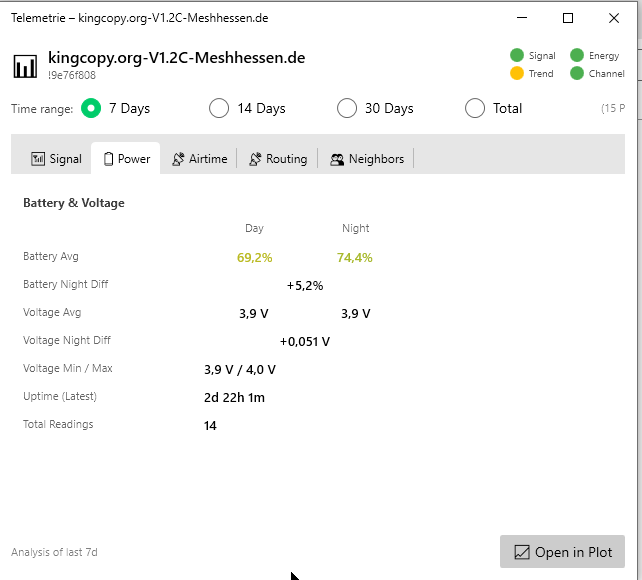
Battery & voltage analysis (day/night profile, night drop):
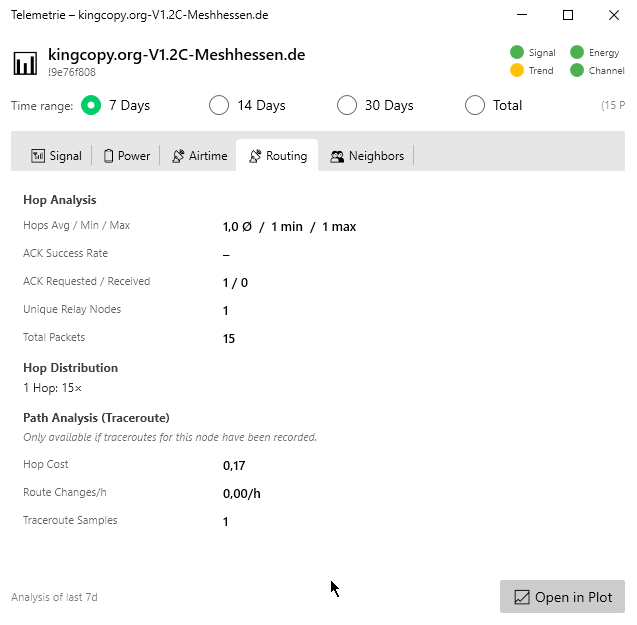
Routing statistics (hop count, path stability, path change rate):
📖 What the individual metrics mean (SNR, RSSI, channel utilization, hop costs …) is explained in detail in the chapter Understanding the values.