📨 Messaging & Communication
← Handbook home · 🇩🇪 Deutsche Version
- Send and receive messages (broadcast & direct messages)
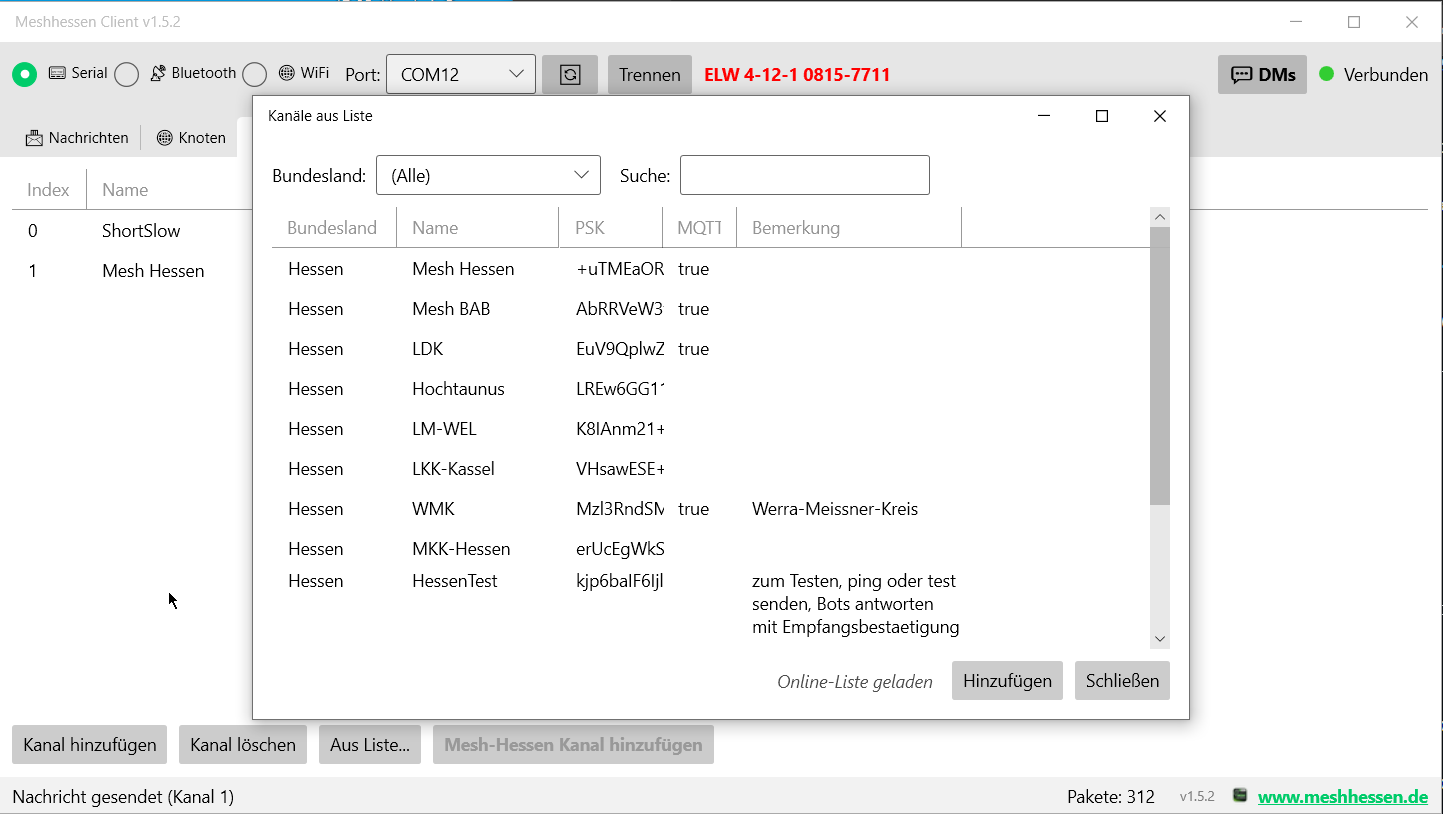
- Multi-channel – all channels from your device loaded automatically
- Direct Messages (DMs) with a dedicated chat window in a tabbed layout
- PKI decryption – client-side decryption of PKI-encrypted DMs (X25519 + AES-256-CCM, firmware-accurate); private key is loaded automatically from the connected device
- Node public key database – local CSV file (
node_keys.csv) that the client maintains automatically with the public keys of received nodes (manual edits are read on the next start) - Tap-back reactions – react to messages with emoji (32 emojis, like the Android app); right-click a message → emoji picker; works in channel chat and DMs
- Reply function – reply to individual messages (protocol-level), quoted block with accent-colored highlight
- Selectable & copyable messages – select text, copy to clipboard, click links; right-click any message → "Copy Message" (always copies the right-clicked message)
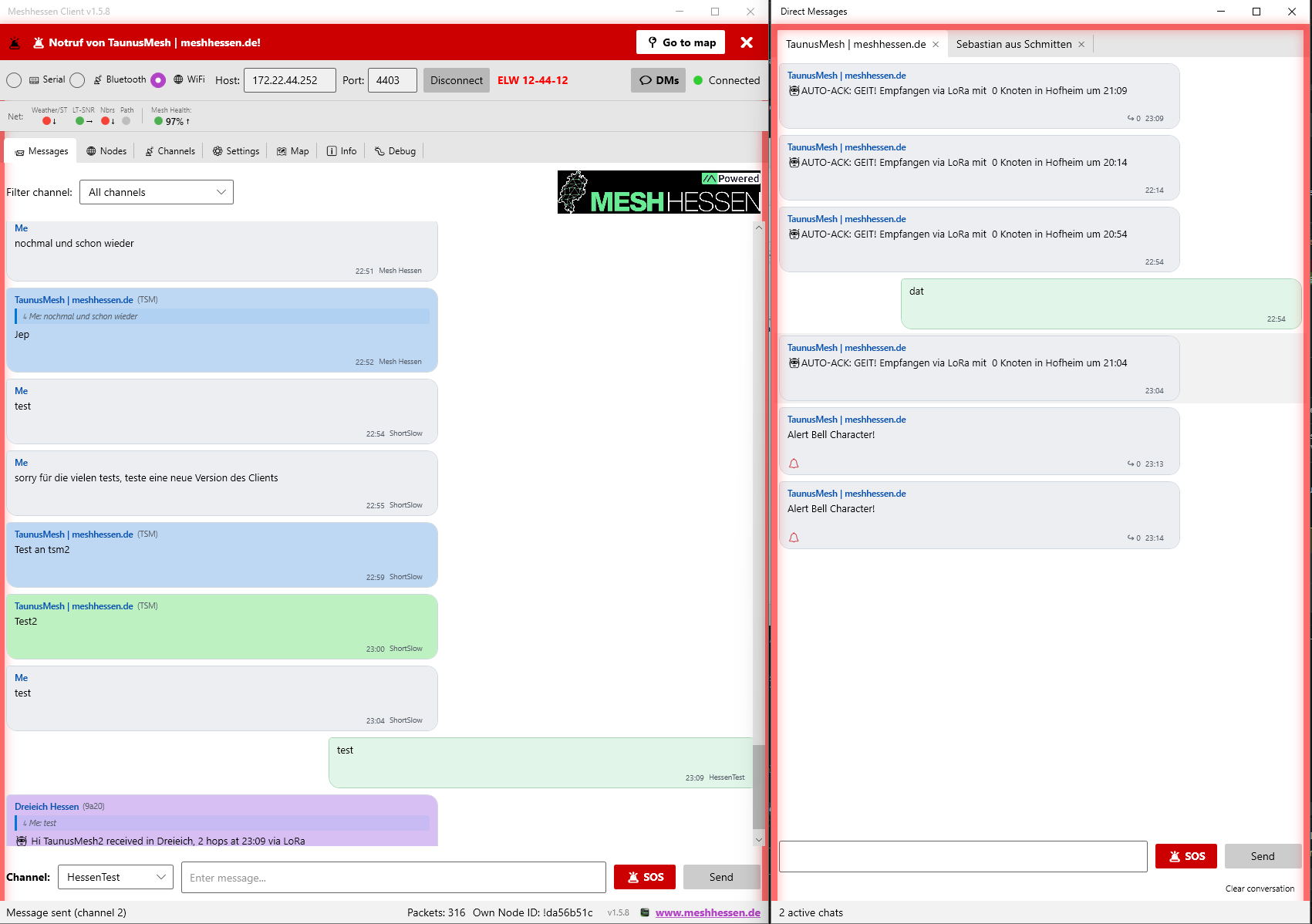
- 🚨 Alert Bell support – send and receive emergency alerts; 🚨 SOS button in chat and DMs; red blinking border + notification bar with "📍 Go to map" button
- Persistent message database – channel and DM messages in a local SQLite DB (enabled by default; can be turned off in the settings under "Message database")
- Last 24 hours loaded automatically on connect; older messages lazy-loaded when scrolling up
- DM history: all conversations from the last 24 h appear automatically when the DM window is opened
- Per-channel deletion directly in the Channels tab with a time-range dialog (All / 30 / 90 / 365 days)
- Confirmation before clearing a DM conversation; configurable retention period (30 / 90 / 365 days / unlimited — default: 90 days)
How-to: send your first message & an encrypted DM
Goal: send a broadcast into a channel, then an end-to-end encrypted direct message to a specific node.
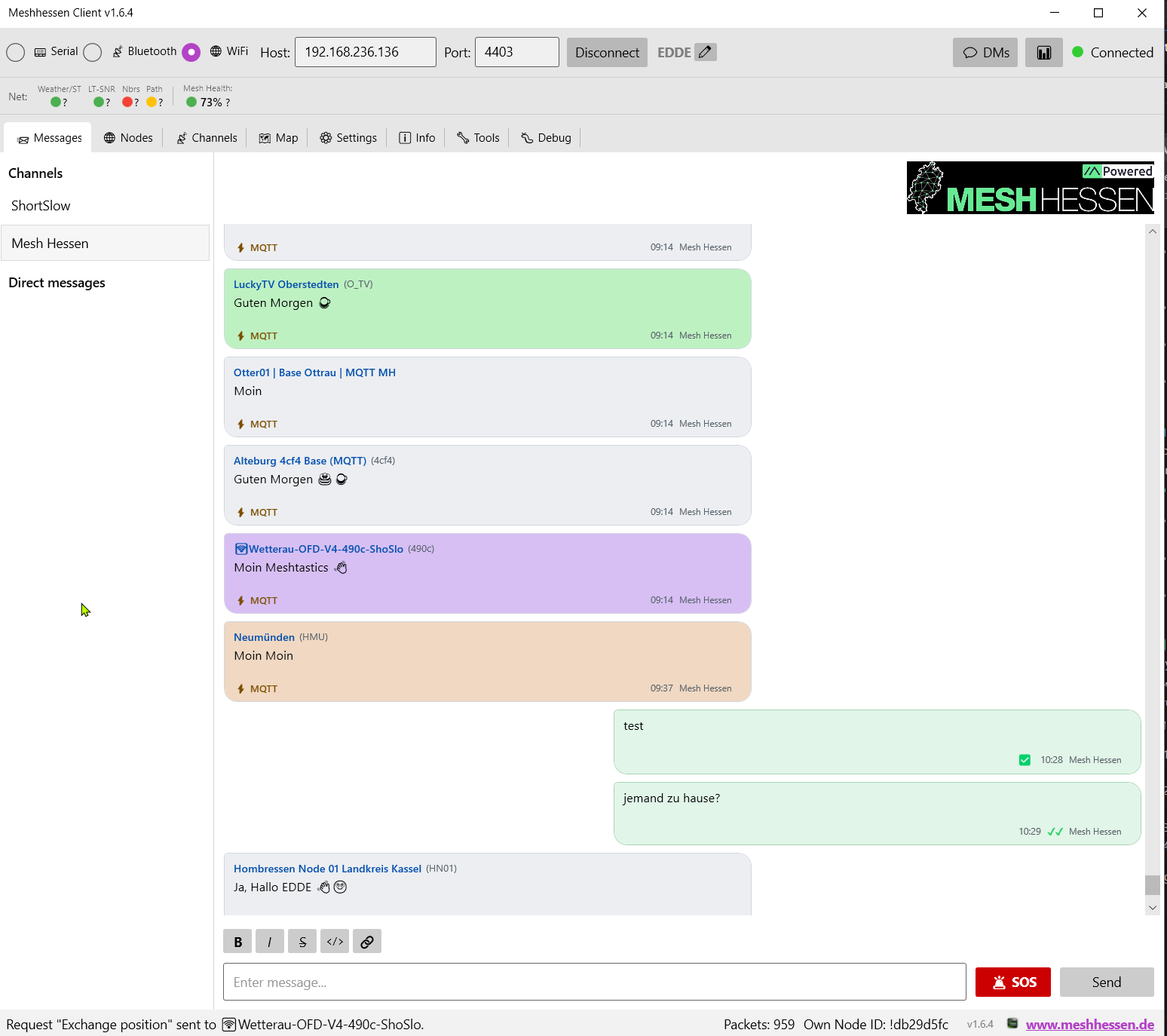
- Channel message: Messages tab → pick the channel in the "Channels" sidebar on the left → type at the bottom → Enter. Your own message shows right-aligned; replies arrive in the same thread
- Start a DM: right-click the target node (node list, map, or one of its messages) → "💬 Send DM" — the conversation opens as its own tab in the DM window (or directly in the main window, depending on your settings)
- Check encryption: the 🔑 column in the node list shows whether the target's public key is known. 🔑 = PKI DMs can be encrypted and decrypted (X25519 + AES-256-CCM); an empty cell (table) or 🔓 (tile view) means the key is unknown — then only channel encryption applies
- Success check: the sent message gets delivery check marks: ✓ = sent, ✓✓ (green) = acknowledged by the recipient (ACK); the reply appears in the tab. Received PKI DMs are decrypted by the client itself
- Extras: right-click a message → emoji reaction or "Reply" (quote block); text is selectable and copyable
Typical pitfalls:
- No 🔑 on the target → the public key is missing locally: receive the node directly once or pull its user info via right-click "📥 Request information → User info" (for encrypted received messages the 🔑 button right on the message works too)
- No ACK → target currently unreachable (test with a traceroute) or the link is congested — wait briefly instead of resending (airtime!)
- Old conversation missing → the message database is enabled by default; check whether it was turned off in the settings ("Message database") — without it, history only starts at connect time
Screenshots
Messaging view with channel chat and direct messages:
Channel list with all Meshtastic channels:
Alert Bell / SOS emergency display: