🗺️ Map & Offline Use
← Handbook home · 🇩🇪 Deutsche Version
Map styles & vector map
Which map style shows what?
| Style | What it shows | Best for |
|---|---|---|
| OSM Standard | Classic street map: places, roads, buildings, POIs | Everyday use & navigation — the all-rounder |
| OSM Dark Mode | The same map in a dark rendering | Night operation, radio room / wall monitor, matches the client's dark mode |
| OpenTopoMap | Topographic map with contour lines and terrain shading | Site and range planning: the terrain between nodes at a glance |
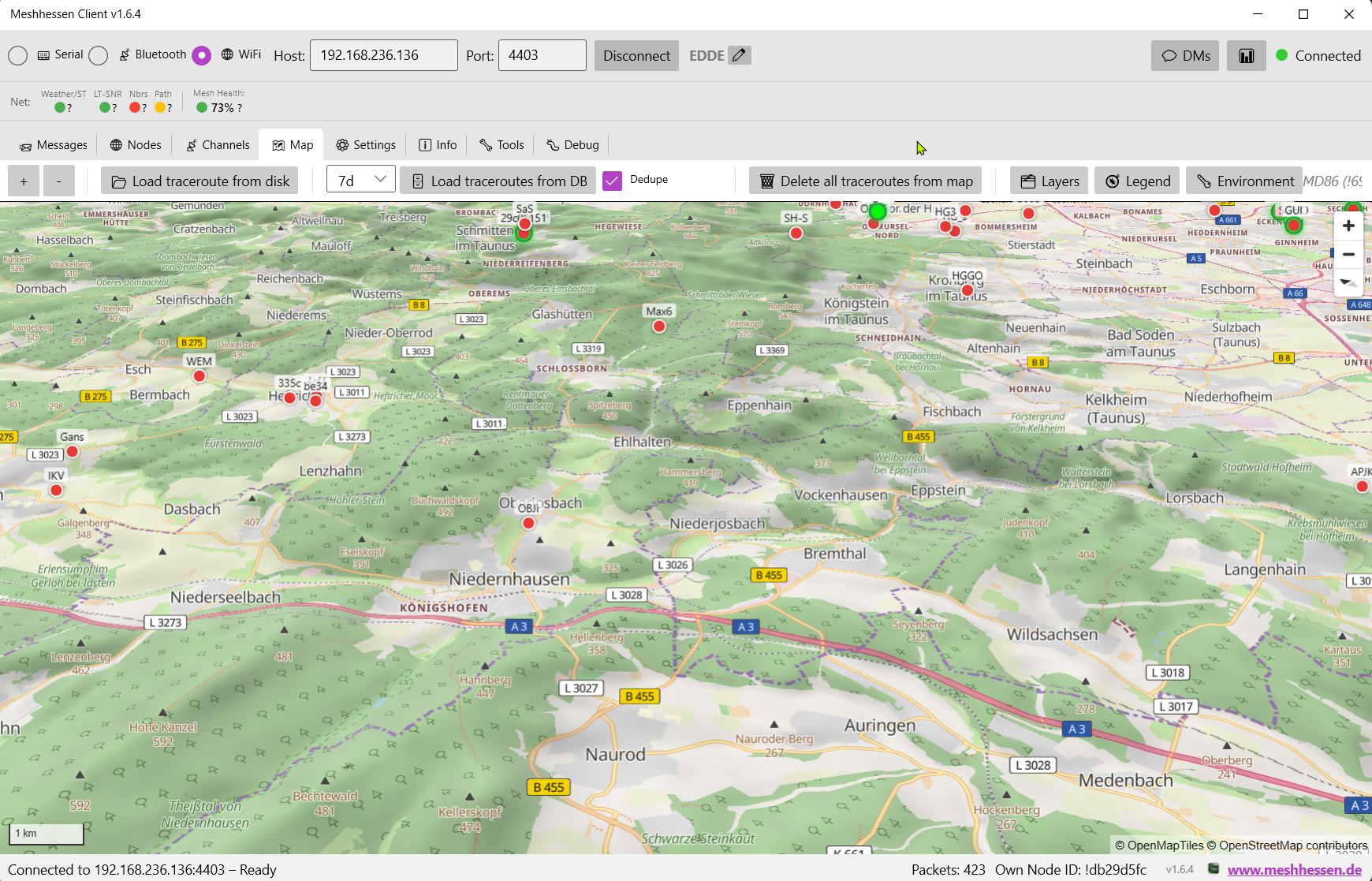
All three styles are available on the raster and the vector map alike. The vector map (MapLibre GL) renders them razor-sharp and additionally brings the optional special-purpose layers and 3D terrain: * Vector maps (switchable in settings, raster remains the default): * Razor-sharp at every zoom level (MapLibre GL), much smaller offline data, style updates without a client update * 🚒 Fire service / rescue layer (see below) * Layer selection in the settings and via the 🗂️ button directly on the map; while a layer is off, not a single byte is loaded for it * Automatic offline cache: areas viewed online keep working without internet; plus a vector offline package downloader (federal state / custom bounding box, topo extras and extra layers as opt-in) * Full feature set: node pins, traceroutes, neighbor lines, position tracks and the right-click menu also work on the vector map * ⛰ 3D terrain – a real elevation model (SRTM; DEM coverage up to ~52° N) with hillshading, toggled via the 🗂️ layer popup; Ctrl+drag tilts the map, a north arrow appears while rotated/tilted (click to re-north); areas viewed once keep working offline * Requires the Microsoft WebView2 runtime (pre-installed on Windows 11); without it the client falls back to raster automatically
The vector map (MapLibre GL) – razor-sharp at every zoom level, with node pins:

⛰ 3D terrain – a real elevation model (SRTM) with hillshading on the vector map, tilted via Ctrl+drag:
Map modes
| Mode | Description | Coverage |
|---|---|---|
| Offline (default) | Pre-downloaded tiles from the Meshhessen server. No internet required. | Germany, Austria & Switzerland (DACH) |
| Online – Meshhessen Server (DACH) | Tiles fetched on demand from tile.meshhessenclient.de and stored permanently. All three styles. |
Germany, Austria & Switzerland (DACH) |
| Online – custom tile server | Same, but with your own configured tile URLs; public OSM/OpenTopoMap servers are not allowed here (tile usage policy). | depends on server |
| Online – OpenStreetMap (worldwide) | Worldwide coverage via tile.openstreetmap.org; standard map only; OSM tile policy compliant. |
Worldwide |
The OSM online mode is intended for areas outside Germany. The OSM tile server is donation-funded – please use sparingly.
Downloading tiles (offline use)
✅ Downloading from the Meshhessen server is explicitly encouraged —
tile.meshhessenclient.deexists for exactly this purpose; feel free to grab your whole region (be sensible about zoom level and area). Bulk downloads are only blocked from public servers such as OSM/OpenTopoMap — their tile policies forbid them.
- Settings → Map / Tiles: select map mode Offline and rendering Raster — the download button is only visible in this combination (the vector map has its own vector-package downloader, see above)
- Click "Download Tiles…" — the download dialog opens; you pick the map style right in the dialog:
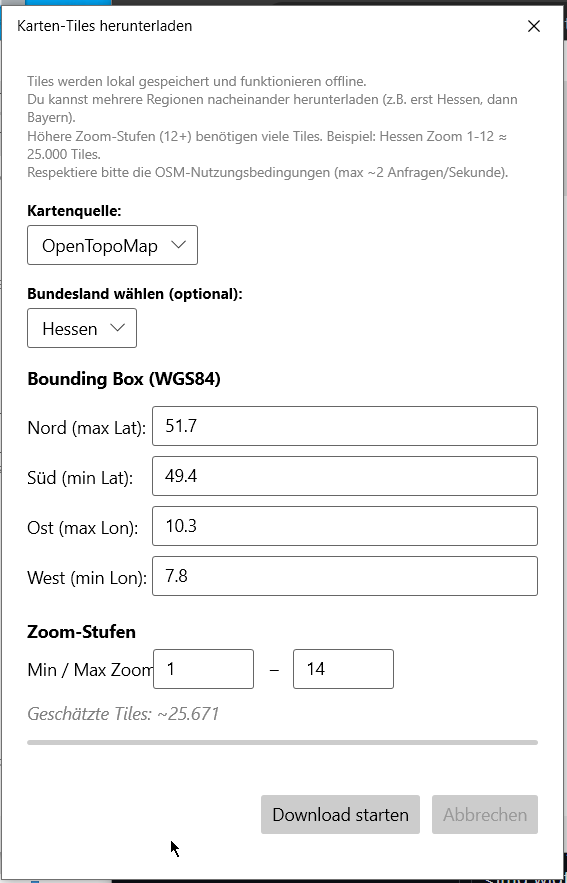
- Define the area: pick a federal state from the list or enter the bounding box manually into the four fields North / South / East / West — Hesse is pre-filled (N 51.7 · S 49.4 · E 10.3 · W 7.8)
- Pick zoom levels (min/max fields): up to
12is enough for an overview, up to14(the default) for towns,15+only for small areas — every extra level quadruples the tile count - Start the download and watch the progress — existing tiles are skipped, so aborting + restarting is completely harmless
- Tiles land under
maptiles/, stay available offline permanently and are portable via USB - Don't forget the offline test (see below)
Typical pitfalls:
- Download refuses to start → public OSM/OpenTopoMap servers are blocked for bulk downloads (tile policy) — use the Meshhessen server or your own tile server
- Blank areas outside the DACH region → the Meshhessen server covers Germany, Austria and Switzerland; use the OSM online mode (viewing only, no bulk download) elsewhere
- Download gets huge → lower the zoom cap or shrink the bounding box — going from zoom 14 to 15 alone quadruples the data
How much storage? Rough raster-map figures: Hesse up to zoom 14 ≈ 2–4 GB per map style; all of Germany up to zoom 14 ≈ 20–30 GB. The vector map is far more compact — a vector offline package for a federal state is usually below 1 GB.
⚠️ On SD cards, factor in the allocation unit size (e.g. for the T-Deck): many tiles are only a few hundred bytes but each occupies a full cluster. With the default formatting of large cards (often 128 KB clusters) the real usage multiplies compared to the figures above. Format exFAT with 4096-byte allocation units — the T-Deck assistant recommends and does exactly that.
Offline test: switch the map mode to Offline (or briefly disconnect the network) and pan/zoom through your target region — whatever renders now is genuinely stored locally. Missing tiles show as blank areas; extend the download area/zoom in that case.
On the map
- Node positions as colored pins; right-click a node → node info, send DM, set color, edit note, pin, start traceroute, open telemetry/position track, request information
- Node paths – record and display GPS position history
- Direct neighbor lines – toggle in the legend box: lines to every node received directly over RF (0 hops, no MQTT); gradient by SNR or age; a "Permanent" option shows every neighbor ever heard directly
- Waypoints – show received waypoints; create and send via right-click on the map
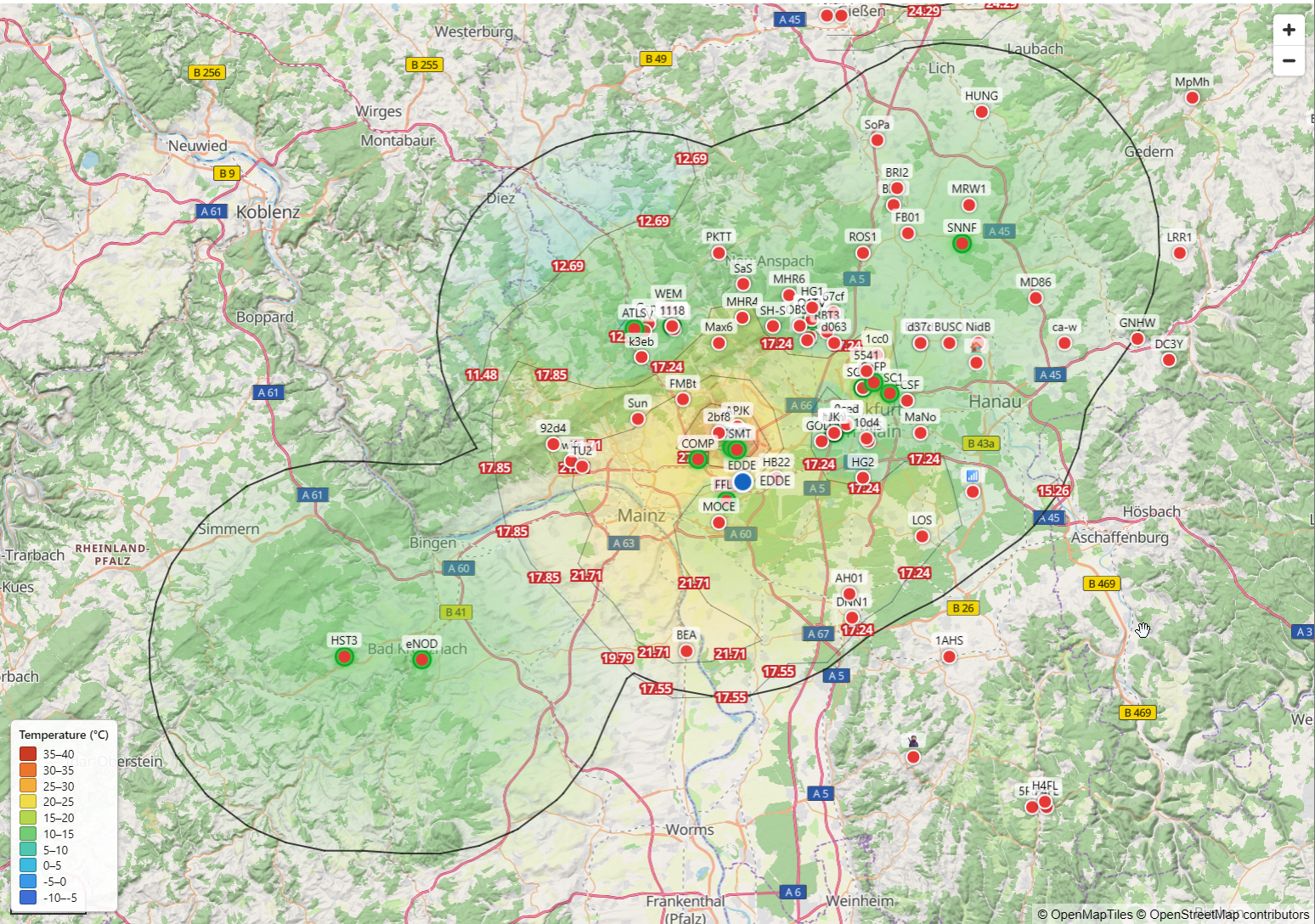
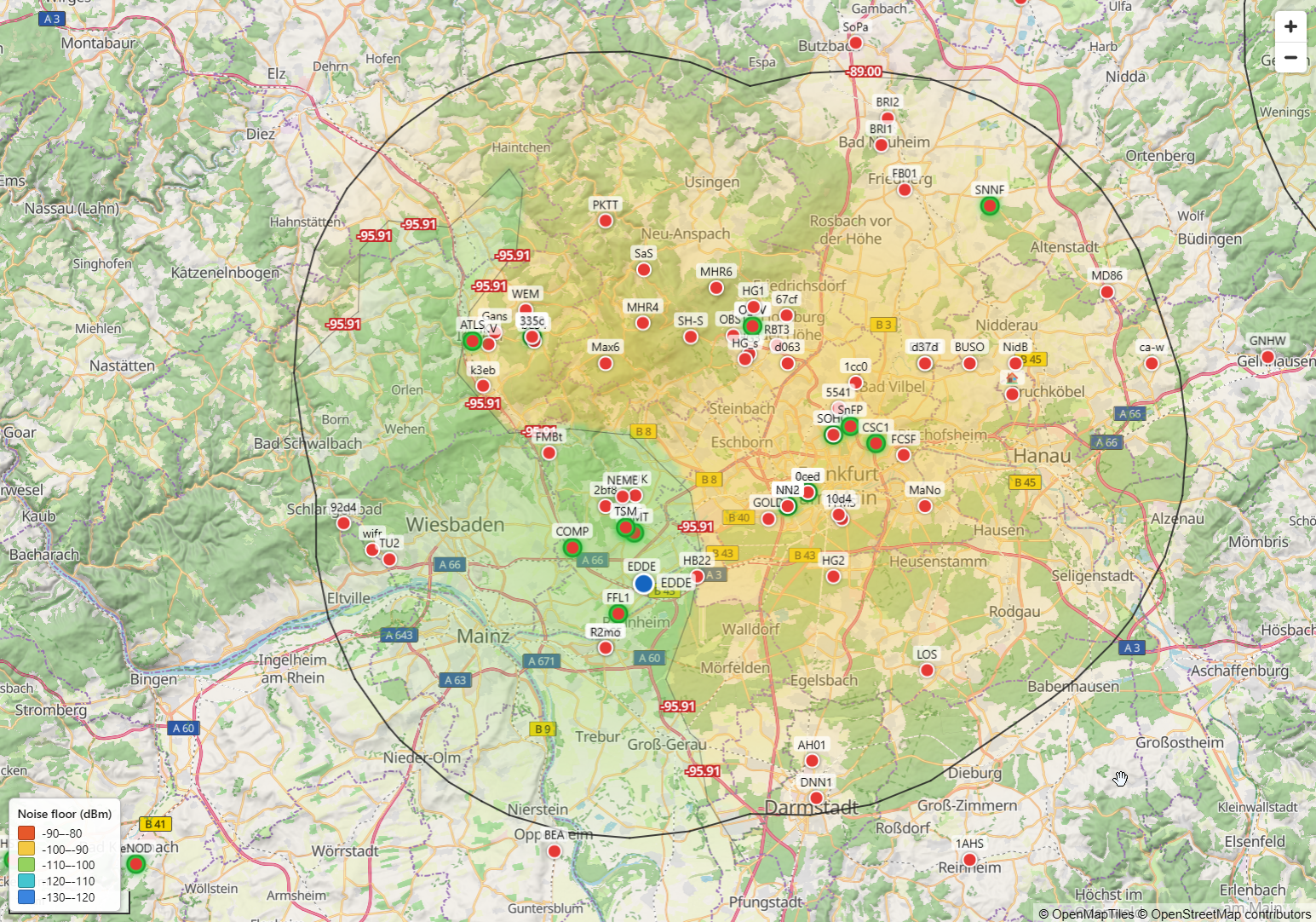
- Environment & radio overlay (🌡️ button) – value boxes at the nodes and a weather-service-style interpolated heatmap; besides all environment metrics also SNR, RSSI and noise floor as surface overlays
Environment & radio overlay in pictures
Temperature – isotherms, zone labels and legend:
Noise floor – radio quality as a surface overlay:
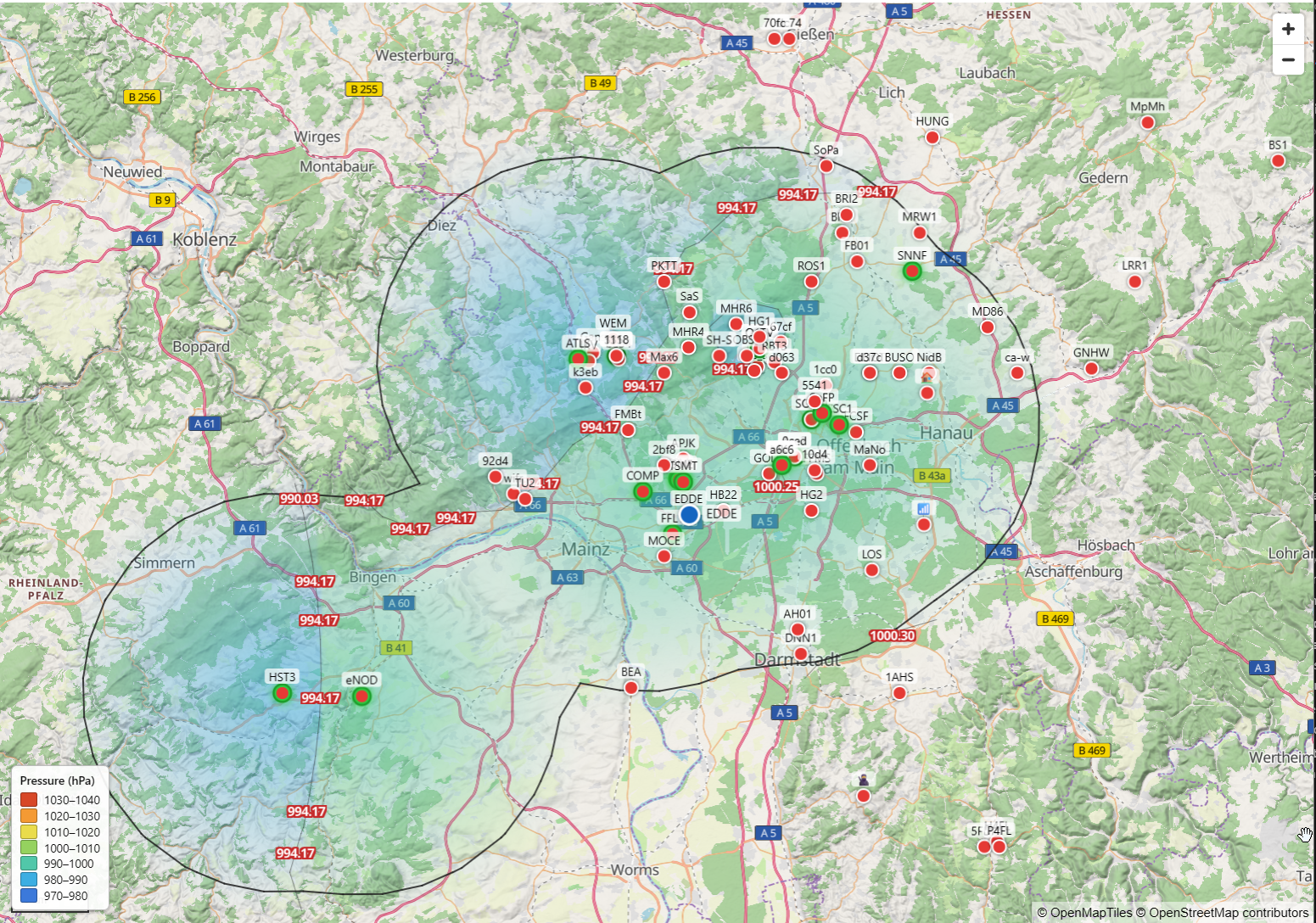
Barometric pressure:
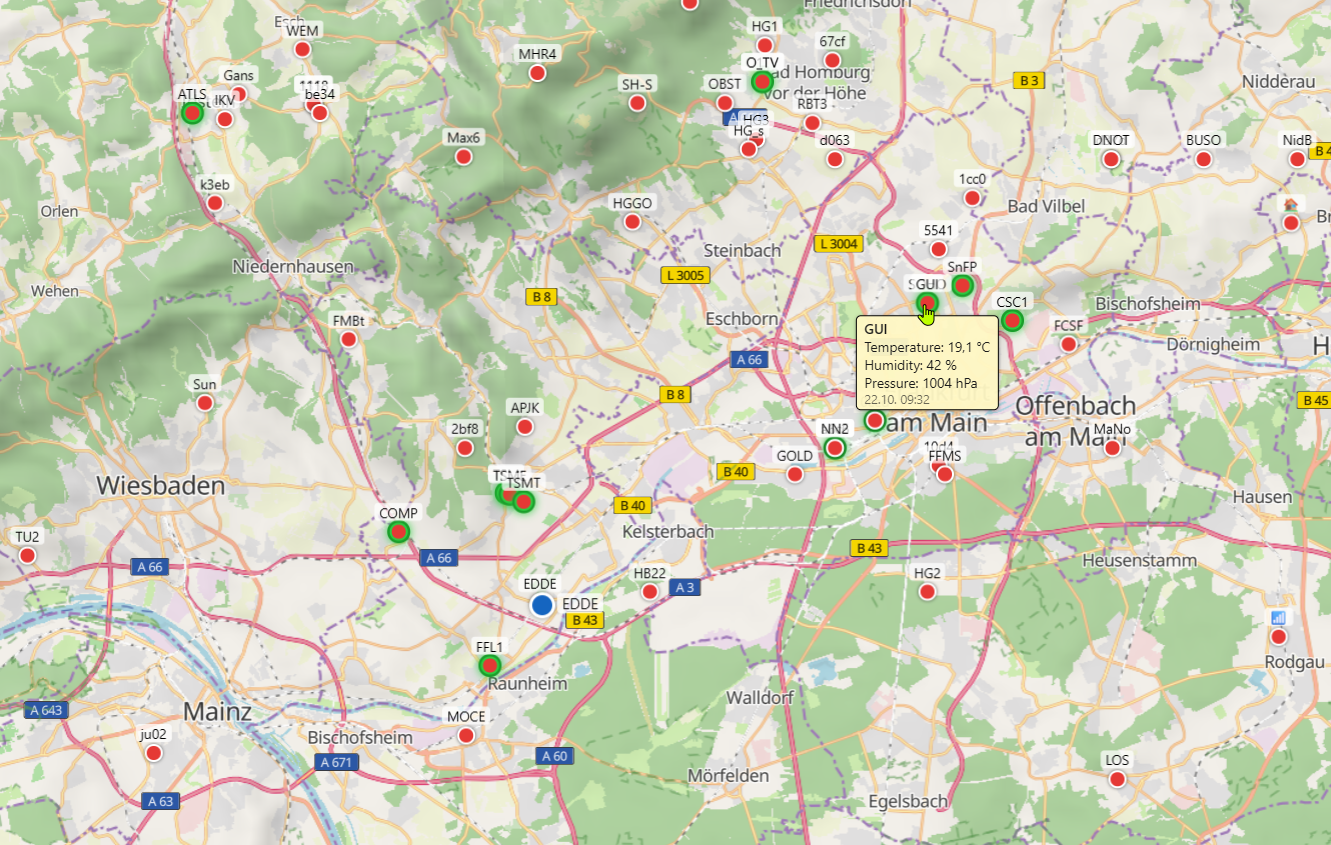
Mouse-over value boxes right at the nodes:
🚒 Fire service / rescue layer (vector map)
An optional special-purpose layer for fire services, rescue services and civil protection – meant as support during operations and exercises ("where is the nearest hydrant / rescue point?"). Data comes live from OpenStreetMap (daily updates on the Meshhessen server) – coverage depends on the local mapping state. Colors follow fire-plan conventions: red = extinguishing/alerting, blue = water supply, green = rescue, orange = civil protection. Clicking an object opens a detail popup with all attributes maintained in OSM (type, couplings, flow, pressure, water source, operator, location description, survey date). Icons deliberately overlap ("during an operation you want to see every point"). Works offline for cached areas; while the layer is off, not a single byte is transferred.
Comparison: classic raster map – without the optional special-purpose layers:

The same area as a vector map with the 🚒 fire service / rescue layer enabled (click shows details):

Clicking a hydrant shows its details – here an underground hydrant (ring symbol) with water source:

More screenshots
Direct RF neighbors with SNR color gradient on the vector map:

Offline map with node positions and distance display:
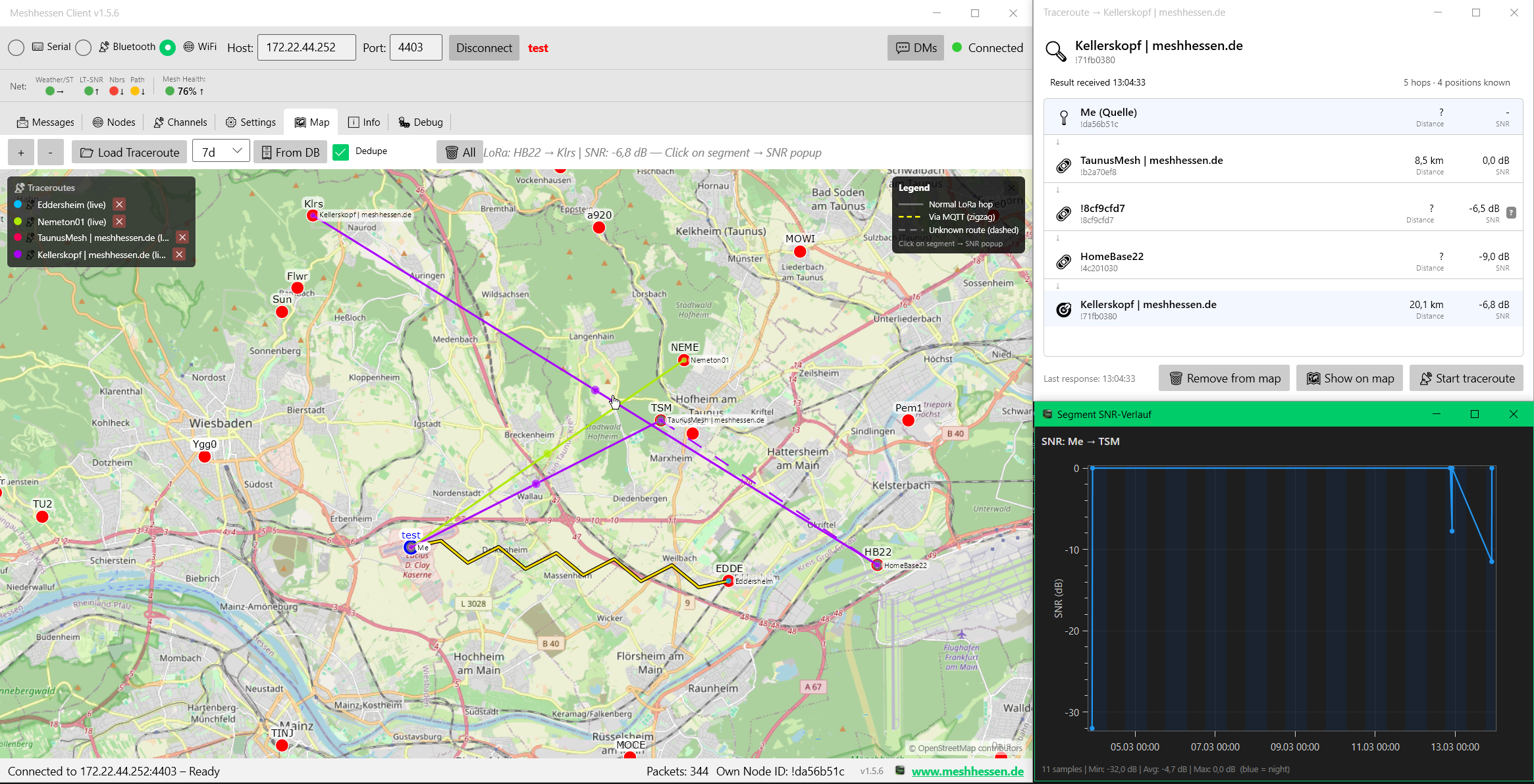
Direct RF neighbors as lines on the raster map (gradient by SNR or age):
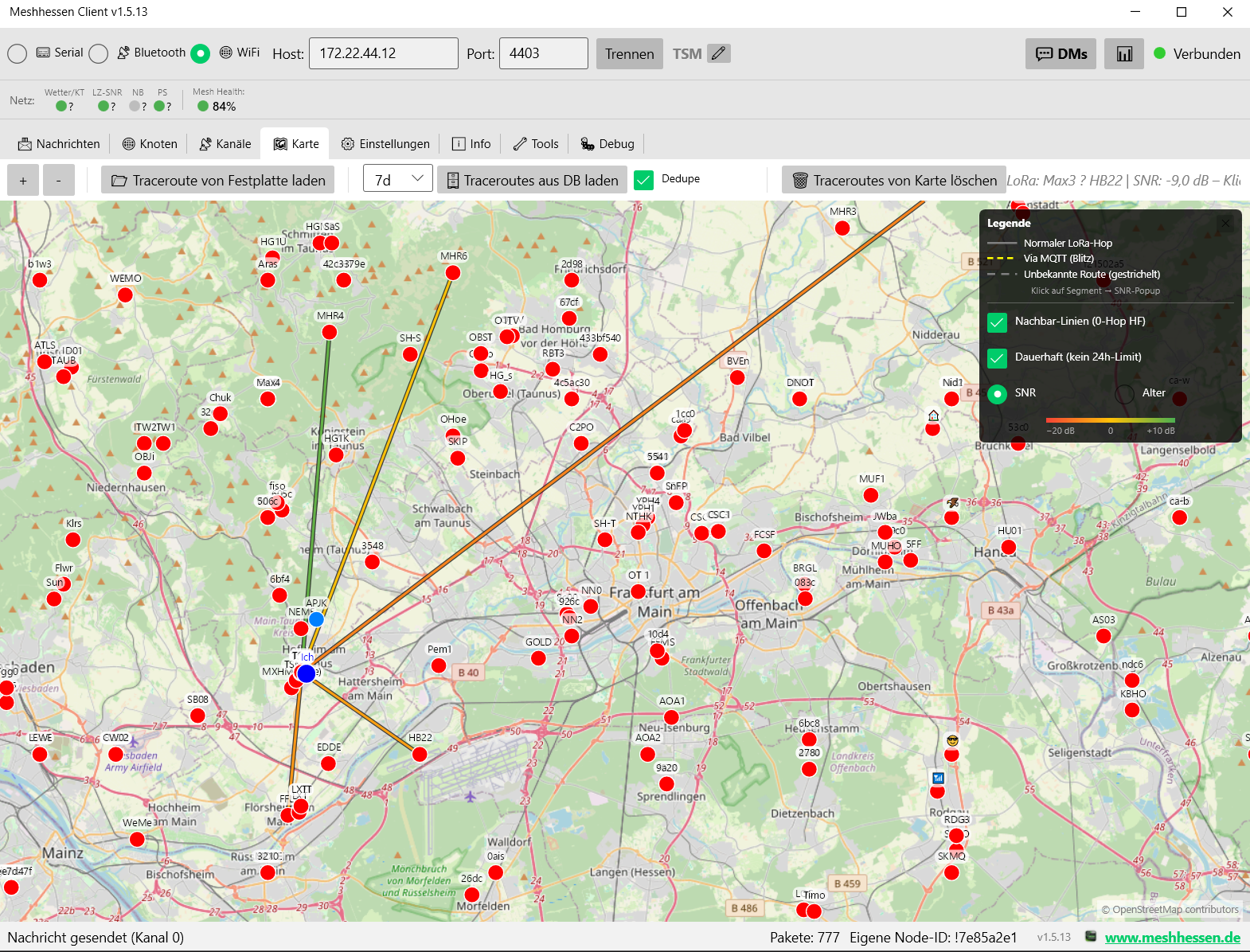
Node position history (GPS track) on the map: